WPMacPPC Appliance for Intel-based Macs | The WPMacPPC Appliance desktop | The files in the download | FAQ | Copying and pasting to and from OS X | Open WPMac files in other programs | Links and useful information | Automatically set zoom level and window size | Automatic font replacement macro | Home page
This page describes an older version of this system, and is retained strictly for historical interest. The current version of this system is described on a separate page.
Read this first: The information on this page is only designed for owners of any Intel-based or PowerPC-based Mac running OS X 10.5 "Leopard" or 10.6 "Snow Leopard" or later! The system described on this page works only on OS X 10.5 or later!
If you have an Intel-based Mac running OS X 10.4, you may want to look at a separate page about an alternate, less-advanced version of the system described on this page; under OS X 10.4, the alternate system must be installed by hand, following instructions on the page that describes the alternate system.
If you have a PowerPC-based Mac running OS X 10.3 or 10.4, stop now and go to a separate page about WPMac in the OS X "Classic" environment.
If you don't know which kind of Mac you have, click the Apple icon on the upper left corner of the screen, then click "About this Mac". In the "About this Mac" dialog box, look at the line that begins "Processor." If you see the word "Intel," then you have an Intel-based Mac. If you see "Power PC" then you have a PowerPC-based Mac. The same dialog box will also tell you which version of OS X you have.
Are you absolutely certain that you understand which page you should read? If not, read this section again, and, if necessary, yet again, until you are absolutely certain that you understand whether this page applies to your Mac.
If you want information about ways to run WordPerfect for DOS on modern Macintosh hardware, see a separate page.
If you have WordPerfect for DOS or WordPerfect for Windows files that you want to open in Microsoft Word for the Mac, you may ignore this page and go directly to another page on this site.
This page provides an "emulated" PowerPC Macintosh system that runs Mac OS 7.5.5 and WordPerfect for the Mac in a window in the OS X desktop. This system is called the WPMacPPC Appliance, and it runs in the form of a window that contains the full desktop of a 1990s-era Macintosh computer. (An "appliance" is an emulated computer system used for one specific purpose.)
Like all applications written for older (pre-OS X) versions of the Macintosh operating system, WordPerfect for the Mac cannot run within OS X itself. It will only run inside an "emulated" Macintosh - a "virtual" computer created entirely by software, and running in a window on the OS X desktop. This "emulated" Macintosh is the software equivalent of a 1990s-era Macintosh that can run System 7 or OS 8 or 9, which are the operating systems in which WordPerfect for the Mac were designed to run.
Two programs exist that can create an "emulated" Macintosh, one called SheepShaver, which imitates a PowerPC-based Macintosh capable of running System 7.5.3 through Mac OS 9.0.4. This is the program that is at the heart of the WPMacPPC Appliance. (An alternate, less technically-advanced system, based on Basilisk II, is available on another page.)
Remember, the "PPC" in the name of this system means that the system is software that emulates a PowerPC-based Macintosh; it can run on the hardware of either an Intel-based or a PowerPC-based Macintosh.
To use WordPerfect for the Mac on this emulated WPMacPPC Appliance system, download the installer disk image for the WPMacPPC Appliance, a complete system based on SheepShaver. Perform the following steps to install and run the Appliance:
To restart the WPMacPPC Appliance after shutting it down, double-click the "WPMacPPC" icon again.
To open WPMac documents automatically in the WPMacPPC appliance, select a WPMac document in your OS X system, press Cmd-I for the Get Info dialog, select Open With, and specify WPMacPPC (if it is not already selected). You may now open a file in the WPMacPPC Appliance by double-clicking a WPMac document file, or by dropping a document file on the WPMacPPC icon. If the WPMacPPC Appliance is already open, the document file will open in WPMac. The WPMac document file must be in the Documents folder of your OS X home folder, and the application will warn you if it is not.
You may open the WPMacPPC application in the OS X Applescript Editor to explore additional options and features in this system. If you change any options in the script, the Applescript Editor will take a very long time to close and save the file; be patient.
The WPMacPPC Appliance automatically installs Gero Hermann's WordPerfect plug-ins for QuickLook and Spotlight so that WP files can be searched in Spotlight and previewed with QuickLook (hint: use the spacebar when a a file is selected, or use the QuickLook keyboard shortcut Cmd-Y).
System requirements: OS X 10.5 or 10.6 or later. I have tested this system only on Intel-based Macs running OS X 10.5 and 10.6, but visitors tell me that it also works on PowerPC Macs running OS X 10.5. If your system has been updated from previous versions of OS X, and the installer is unable to create the folder "Folder Action Scripts" in the "Library/Scripts" folder of your user directory, you may need to create that folder and then run the installer again.
Acknowledgments: This system is based on work by John Rethorst, who first devised a SheepShaver/WPMac system and a system for opening files automatically in WPMac after selecting them in OS X, and by Smokey Ardisson, who devised the system for opening WPMac files with an OS X application bundle.
Note: The WPMacPPC appliance was updated on various dates, most recently on 17 June 2011, with various improvements to speed and reliability.
These are the icons on the WPMacPPC Appliance desktop. (Remember, the WPMacPPC appliance appears in a window on your OS X desktop.)
A shortcut to the "Read Me First.pdf" file; you must read at least the first page of this file! It will tell you how to set up the system so that you can print or create PDF files from WordPerfect. You absolutely must read this file if you want to print or create PDF files.
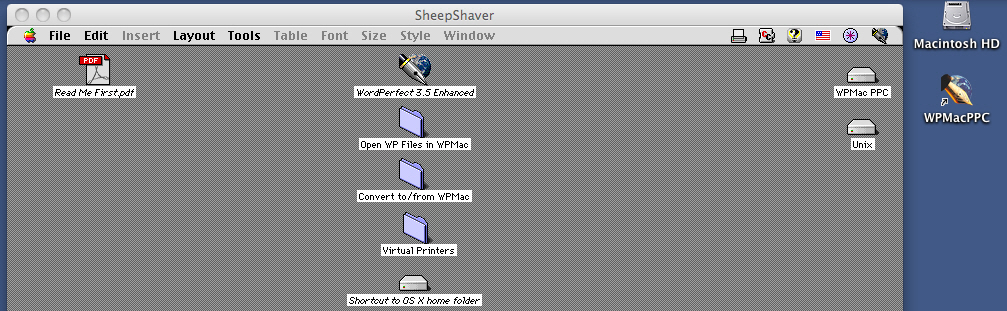
The desktop shortcut "WordPerfect 3.5 Enhanced" opens the final version of WPMac. Use the program exactly as you would have used it on a real Macintosh computer.
The "Open WP Files in WPMac" folder contains "droplets" that you can use to open WordPerfect files (for files created in non-WP formats, such as Microsoft Word, see the paragraph below this one) in WPMac when you can't (or don't want to) open those files from the WPMac File/Open menu. Drag the files to appropriate droplet to open it in WPMac. The droplet named "Drop Mac file..." should be used only for WPMac files and Mac-based text files.
The "Convert to/from WPMac" folder contains droplets that can convert many file formats into other file formats. If you want to edit a Microsoft Word or other non-WP file in WPMac, drop the file on the "to Corel WordPerfect 3.5e doc" droplet and drag the resulting file to the desktop or some other folder. To convert a file into WPDOS, Microsoft Word, or any other supported format, drop the file onto the appropriately-named droplet and drag the resulting file to the desktop or your Unix folder. Use these droplets before transferring files to your OS X system.
The "Virtual Printers" folder contains desktop printers used by this system. All of them can print to your OS X printer or create PDF files. You can, of course, use these printers from within WordPerfect. Make sure to read the "Read Me First.pdf" file on the WPMac Appliance desktop for instructions on initial setup.
The "Shortcut to OS X user folder" and the "Unix" icon both open a window that shows the file in your OS X "Documents" folder. In other words, if your OS X username is "Roscoe", the Unix icon in the Appliance is the same as the "Documents" folder inside your "Roscoe" folder in OS X. Drag documents to and from the Unix window to move them between OS X and the Appliance. The "Shortcut to OS X user folder" shortcut is on the desktop only in case you forget what the "Unix" icon does! (Note: Versions of this system posted before 16 January 2011 used the home folder, not the Documents folder inside the home folder, as the "Unix" folder in SheepShaver.)
How the WPMacPPC Appliance differs from a real Mac: The SheepShaver emulator works more or less like any real PowerPC Mac running an ancient version of the Mac OS. The only significant differences between this system and your old PowerPC Mac are these:
How to get files into and out of the WPMacPPC Appliance. You may open a WP document file in the WPMacPPC Appliance by double-clicking it in OS X or by dragging it to the WPMacPPC Appliance icon. Alternatively, you can copy or move a file from your OS X system to the WPMacPPC Appliance disk by performing the following steps:
Warning: Be safe by saving new and modified files to the WPMacPPC Appliance Desktop, not directly the "Unix" folder. WordPerfect for the Mac can save files directly to the "Unix" folder (which, as you remember, is actually a folder on your OS X system). However, not all programs included on the WPMacPPC Appliance are able to save directly to the "Unix" folder; for example, any file that you attempt to save from Apple's SimpleText (included in the WPMacPPC Appliance) to the "Unix" folder is deleted, not saved. To avoid this problem, save new and modified files to the WPMacPPC Appliance desktop, and then drag the files from the WPMacPPC Appliance desktop to the "Unix" folder in order to transfer them to your OS X system.
A warning on "Save As..." from WordPerfect for the Mac: Be certain to test any files that you create by using the File | Save As... option in WordPerfect. If your document is complex, the WordPerfect export filter may produce an empty file. The export filters that seem most reliable are "Microsoft Word 6.0" and "WP for PC 6,7,8." (Avoid using the "RTF - Rich Text Format" and "WP for PC 5.1,5.2", which often create empty files.)
A warning about the Microsoft Word 6 format: If you convert your WPMac files to the Microsoft Word 6, the resulting files may not be usable in Microsoft Word for Windows. Recent versions of Word for Windows refuse to open such files because their file format is inherently insecure. If you save a file in Word 6 format from WPMac, open in it Word for the Mac or some other program, and then save it again in the format of Word 97 or later so that it can be read on current Windows systems.
If you need more disk space: If you run out of disk space on the WPMacPPC disk image, use the SheepShaver Preferences dialog (accessible from the SheepShaver top-line menu) to create an additional disk for this system. Use the suggested folder, and select a suitable size. You can do one of two things with your newly-created disk: (a) you can use the new disk to store files and programs that do not fit on the main disk, while you continue to use the main disk, or (b) if you created a large disk (perhaps 512MB or 1GB in size), you can use it to replace the original disk. To do so, start the WPMacPPC Appliance; copy the entire contents of the original disk to the new disk; shut down the WPMacPPC Appliance; use the SheepShaver Preferences dialog to remove the old disk. Restart the WPMacPPC Appliance.
Troubleshooting:
Technical note: An HTML-formatted version of the Applescript at the heart of this application is available on a separate page.
This download includes a variety of different software, with different copyright status, as follows:
If either Apple or Corel wants me to remove any software from this site, they know where to find me. The chairman of Apple, Steven Jobs, quoted me in his keynote address to the World Wide Developers' Conference in 2008, and I am in constant communication with Apple's corporate communications department. I have been in continuous contact with Corel ever since that company acquired WordPerfect. Both companies know how to reach me, and both know that I will immediately agree to any request they may make in reference to their intellectual property.
Q. Why can't this system connect to the Internet,
or at least to the rest of my network?
A.
Networking in Macintosh emulators is at best slow and at worst unstable. If you want to
add networking components from a Mac OS installation CD, feel free to do so. But
I think you will be wasting your time.
Q. What happened to the Chooser? It isn't there!
A. In this system, I have removed the Chooser from the
Apple Menu because there is nothing you can
choose from the Chooser. The networking components are absent from this system
because networking is unreliable from Basilisk II. The "Virtual
Printers" are all variations on the Apple LaserWriter printer driver, which is
the only driver that lets you print to your OS X printers or create PDF files
through OS X. So the Chooser would be useless. If you insist on having the
Chooser, you can find it in the System Folder, in the Apple Menu Items (Disabled) folder.
Q. I want to upgrade the WPMacPPC Appliance from
System 7.5.5 to Mac OS 9. Can you help me do that?
A. SheepShaver can run Mac OS versions through 9.0.4, but you will need to replace the "Mac OS ROM" file with a different ROM file; you will need to create a new disk image; and you will need to install OS 9.0.4 on this new disk image. I can't help you with this procedure, but you are welcome to try it for yourself.
Q. I have an old Mac program called MacCheese that
I use for making Stilton and Cheddar in my garage. Please tell me as soon as
possible whether your system will run this program, and what I might have to do
in order to make it work smoothly. I will be glad to send you a
copy of MacCheese so that you can test it for me and tell me whether it will
work, so that I don't have to waste my extremely valuable time by installing it,
only to find that it doesn't work.
A. I have never heard of MacCheese, and I have no plans to test
it. I understand, of course, that your time is far more valuable than mine is,
and I understand why it makes to sense to you that I should waste my time
testing a program that you want to use.
However, you might want to consider the bold, revolutionary step of trying it yourself.
Q. Sorry, but I just don't understand any
of this. I see that you went to a lot of trouble to explain it extremely
clearly, but I'm too lazy and impatient to read what you've written. Please send
me an e-mail that tells me all the things that you're saying on this page, but
a lot more clearly, and addressed to me personally, not just written for anyone. Meanwhile,
I'll also send you a long list of questions, because I'm too impatient to find the answers
that are already on this page.
A.
Please read this page slowly and carefully.
You can copy and paste plain text between OS X and the WPMacPPC Appliance. If you are copying from the WPMacPPC Appliance to OS X, follow these steps:
Follow a similar procedure to cut-and-paste instead of copy-and-paste from the WPMacPPC Appliance to OS X. Use similar procedures to copy- or cut-and paste from OS X to the WPMacPPC Appliance.
Technical note: When copying from OS X to the WPMacPPC Appliance, it is not necessary to click on the WPMac Appliance desktop before pasting, but you should do so anyway, so that you will be less likely to forget that essential step when pasting to OS X.
Frequently-asked question:
Q. I tried this method and it didn't work at all! Why are you wasting my valuable time with a method that you obviously didn't bother to test? How can you repay me for the time and effort that I've wasted trying to follow your incompetent and ignorant instructions?
A. Please try the procedure again. This time, please remember to click on the desktop of the WPMacPPC Appliance, exactly as it says in the description. Again, please do not forget to click on the desktop of the WPMacPPC Appliance after copying and before pasting.
If you have WPMac files that you wish to open in other applications, the following list tells you which applications may be able to open your files. See also the list of standalone conversion programs at the end of this list. For information on specially-created applications for converting WPMac and WPDOS files into other formats, under OS X, see a separate page.
Files created by WordPerfect for the Mac 3.5e (3.5 Enhanced):
Files created by WordPerfect for the Mac 3.0 through 3.5.4 (but not 3.5e), including files saved in "WPMac 3 Compressed" format, which seems to be identical to the WPMac 2.x compressed format:
Files created by WordPerfect for the Mac 2.x, including files saved in "WPMac 2.x Compressed" format:
Files created by WordPerfect for the Mac 1.x:
Files created by WPMac that use the Mac OS "Language Kits" (Japanese, Korean, etc.)
Standalone conversion software:
For the Macintosh:
Under Windows:
Yahoo Groups hosts a WPMac user group, founded and moderated by John Rethorst. Anyone may join easily, and your e-mail address can be hidden from other members. The group's resources include around a thousand digests of the now-defunct WP-L mailing list, which are accessible via Yahoo's search engine (over 23MB of discussion covering almost a decade) via this link (available only after you have joined the group). This index follows the digests in the group's Message area. The group's Links and Files section contain access to virtually every downloadable or web-based WPMac resource except for the large downloaders for WP itself.
Note: Make sure to study the files page of the Yahoo WPMac group, and download highly useful programs such as John Rethorst's MetaMacro, which runs a WP macro on multiple files with a single command. Also, remember that while most of the information available on the archives of the WP-L mailing list is highly reliable, you should not believe everything you read, especially in messages that warn you not to use up-to-date Mac software, or that warn you not to turn on useful convenient features of current Mac software; most such warnings that you find on the list are based on obsolete information.
Many additional files for WPMac may be found at the Info-Mac HyperArchive; read the file "00wp-abstracts.txt" for descriptions. See also the page of WPMac links at WPUniverse (but be warned that most of these links are defunct).
Books worth reading about WordPerfect for the Macintosh include John Rethorst's Teach Yourself WordPerfect 3.0 for the Macintosh (search for it on bookfinder.com, or read the full text in on the Yahoo WPMac user group message board, starting here); Rita Lewis's WordPerfect 3.5 for Macintosh: Quick Start Guide (search for it on bookfinder.com); and Mark Kellner's WordPerfect 3.5 for Macs for Dummies (search for it on bookfinder.com).
Users who already know the basics of the program should study John Rethorst's unique guide to WordPerfect macros and related AppleScript scripting, available as "Scripting Guide" in the files section of the Yahoo WordPerfectMac group.
An Envoy document viewer for the Envoy-format files distributed with some WordPerfect, Corel, and Novell products may be found at a third-party download site.
WordPerfect for the Macintosh was written for different screen sizes than those on today's computers, so many users change the zoom level for comfort. Instructions for creating a macro that does this automatically may be found on another page.
If you created WordPerfect documents under older versions of the Macintosh operating system, you may have chosen obsolete Mac fonts like Geneva or New York as your default document fonts. These fonts can produce unattractively-formatted documents when printed under OS X, and you may want to replace them with more modern fonts.
A macro that automatically replaces fonts when a document is opened was written by John Rethorst and Kevin McCoy. Download this Stuffit archive containing a WPMac document; extract the document and open it in WordPerfect. Follow the instructions in the document to install the macro.
If you have one or more of the "Apple Language Kits," you may use WordPerfect for the Mac to edit text with Chinese, Japanese, Korean, or other non-Roman scripts. Use the 1.x versions of the Language Kits with the version of the Mac OS supplied here.
Other sites include further information on Chinese on older Macs and Japanese on older Macs, and a web search will lead to further information.
To convert WPMac files with non-Roman scripts into modern word-processor formats, use the WPLO Converter, as described on another page.